Chapter 2: Automate the Boring Stuff
Learning Objectives
- Build trust with an agent in steps, so you know how much to hand it.
- Connect email and understand what you are allowing Muse to do.
- Set up and adjust a focused daily watch.
- Read an approval card and decide whether to Allow or Deny it.
- Hand off shopping and website work and approve its important steps.
- Use draft, review, edit, approve before anything goes out.
- Save standing preferences so Muse signs off and labels email as your agent.
Every day has small jobs that eat your attention: checking email, comparing prices, filling out forms, tracking a ticket price. None of them is hard. They are just boring, and they add up.
This chapter is about handing those jobs to your agent without losing control. The key idea is trust that you build in steps. At first your agent drafts and you decide. As you see it do good work, you let it do more.
2.1 Build trust before you hand things off
You would not hand a new employee your credit card and your inbox on their first day. You would give them a small job, look at how they did, tell them what to fix, and then trust them with a little more. An agent works the same way. You can be confident that it will act on your behalf only after you have seen it do good work.
Trust is built in four steps:
- Give it a small task. Pick something low-stakes with a clear result, like summarizing today's email or drafting a short reply.
- Review the result. Read what it did. Check the facts, the details and the tone. Do not skim.
- Give feedback if needed. If something is off, say exactly what and why, and ask it to try again. If the result is right, say so, so it knows to do it that way again.
- Allow it to perform the action. Once you are satisfied, let it do the real thing: send the message, place the order, make the booking.
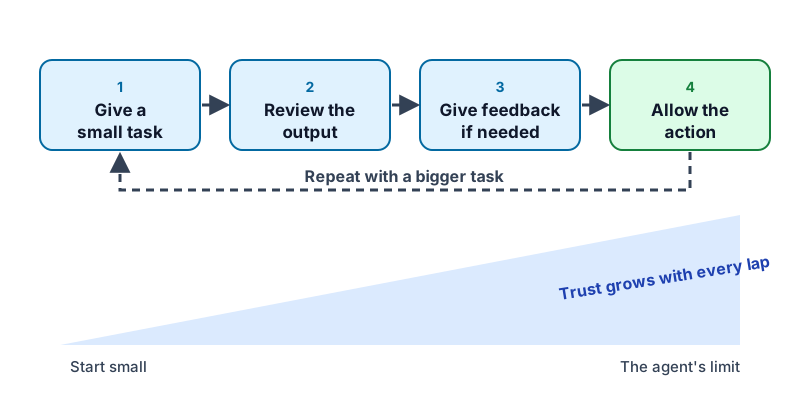
The steps are a loop, not a line. Each time around, you give a slightly bigger task. A summary becomes a draft reply. A draft reply becomes a message your agent sends on its own for a routine case. As each lap goes well, you trust it with more.
Keep going until you find the agent's limit. Everything has one. It might be a task that needs your judgment, a detail it keeps getting wrong, or a kind of action you are simply not willing to hand off. Finding that limit is not a failure. It tells you where your agent can work alone and where you stay involved.
Trust is earned per kind of task. Your agent may be great at summarizing email and still not ready to buy things for you. Treat each kind of task as its own loop.
The rest of this chapter is this loop, one job at a time. Email, shopping and sending messages each start small and go up from there. As you work, ask yourself which step you are on.
2.2 Start a side chat for this chapter
Open Muse and create a new side chat named "Chapter 2: Boring Stuff". Do the examples and assignments in this chapter there, so they stay in one place and apart from your main chat. This keeps the chapter's work together, so you can find it again.
2.3 Connect your email
An agent cannot help with your email until it can reach it. In Muse, you give it that access through a connector.
Connector: A link that lets Muse reach one of your apps, such as email or your calendar. Each one comes with a list of what Muse is allowed to do, and you can turn it off at any time.
Before you connect anything, read what the connection allows. Reading mail is different from sending mail. Ask yourself whether the agent needs that access for the job you have in mind, and connect only what you need. You can find your connectors in Settings, where you can also remove one later.
Simulator: Connect Email. Open the connector list, read what a Gmail connection would allow, and go through the connection steps up to the point where you give permission. Nothing real is connected.
The interactive simulator appears here.
Now do it in your own Muse. Connect your email, stopping to read what you are allowing. If you are not comfortable connecting your main inbox, connect a secondary one, or wait and do the rest of the chapter with the simulator and drafts.
2.4 Set a daily watch
A daily watch is a job your agent does every day without being asked. It checks something and tells you if it matters.
Daily watch: A small job your agent repeats every day on its own, such as checking your email for what matters, and then reports back to you.
The best watches are focused on one thing. "Tell me about my email" is too broad, and you will get a pile of noise. "Each morning, tell me about any message from a customer, a bill, or anything with a deadline this week" is a watch your agent can do well. Say what matters to you, say when you want to hear about it, and say what to leave out.
Write your watch as a brief, with the result you want and what done looks like. For example:
Each morning at 7, check my email for anything from customers, bills, or deadlines this week. Send me a short summary in chat. Ignore newsletters and promotions. If nothing matters, tell me "nothing today."
Simulator: Connect Email and Set the Daily Watch. Set one focused daily watch and get the report it sends you without being asked.
The interactive simulator appears here.
In your own Muse, send your watch brief. Then open the status screen and look under Upcoming. Your watch should be listed there with its schedule. After the first report arrives, tune it: tell your agent what was useful, what was noise, and what to add. A watch gets better over several days, so plan to adjust it.
Start with one watch and make it good. Five vague watches are worse than one that you actually read.
2.5 Read the approval card
Muse asks before important actions. A purchase, an email or a booking shows up as a card with two buttons: Allow and Deny.
Approval card: A card in your chat that shows exactly what Muse wants to do and waits for your yes (Allow) or no (Deny).
This is the most important habit in the course, because it is what lets you hand work to an agent without worrying.
Read the whole card before you tap. Check the item, the price, the quantity or size, the recipient, and the payment method. Allow only if every detail is right. Denying is a good answer when something is wrong, and it costs nothing. Tell your agent what was wrong so it can try again.
In the simulator, two purchase cards arrive. One is clean. The other has a wrong detail. Your job is to allow the clean one and deny the other for the right reason, and the wrong detail can be found from the card alone.
Simulator: Shopping with Approval. Two purchase cards arrive. Allow the clean one and deny the wrong one.
The interactive simulator appears here.
A card that looks almost right is the one to read twice. A wrong size, a higher price than you were quoted, or a different shipping address are the kinds of mistakes an approval card is there to catch.
2.6 Hand off shopping and website work
Muse can use a web browser on its own computer online, and it shows its progress right in the chat. That means it can go shopping for you, sign in to a website, and do real work there, while you approve the important steps.
Give a task like this clear instructions with a limit. "Find a pair of black running shoes in my size under $80 and bring me the best two options" is a good set of instructions. It says what done means, and it says where the agent should stop and ask. Your agent does the searching and comparing. You make the final choice at the approval card.
For sign-ins and payments, use the places Muse provides for them, such as Wallet and the secure credentials store (its locked place for passwords), instead of typing secrets into chat. You can find them in Settings.
Simulator: A Job on a Website. Send Muse onto a site, pick the seats, and approve before anything is booked.
The interactive simulator appears here.
Now give your own Muse one small task on a website. Pick something low-stakes, such as comparing two products, tracking a price, or finding a place to eat. Watch its progress card in the chat, and approve or deny the steps that matter.
2.7 Draft, review, edit, approve
Before you let any agent send something in your name, have it draft first. This routine has four steps:
- Draft. Ask your agent to write the message but not send it.
- Review. Read it as if you were the recipient. Check names, dates, numbers and tone.
- Edit. Tell your agent exactly what to change, or change it yourself.
- Approve. Only when it is right, tell your agent to send it.
Make this a rule your agent follows every time: draft anything that will be sent, and never send, post, buy or book until you approve. Say it once and save it as a standing preference, and you will not need to repeat it.
You can also set a rule about important steps: your agent should ask before a purchase, a booking, or sending a message, and show you the details so you can check them.
Simulator: Draft, Approve, Send. The agent drafts an email. Review it, edit it, and approve it.
The interactive simulator appears here.
Do it for real with one email you actually need to send. Ask your agent to draft a reply, read it carefully, ask for one change, and then approve it. This is your approved draft routine, and it is one of the things you will show at the end of the course.
2.8 Make it clear it is your agent
When your agent writes to other people, they should know it is an agent. That is honest, and it protects your reputation. If a reader finds out later that an AI wrote to them without saying so, trust drops.
Teach Muse to sign off as your agent, for example "Elijah's Agent," and to label every email it sends for you as sent by your agent. Tell it once, then save both as standing preferences so they apply every time.
After you save them, test the preferences. Ask Muse to draft a short email and check that the sign-off and the label are there. If they are missing, say so and ask Muse to fix it, then confirm it will remember.
2.9 Your Learner Profile
Your learner profile now carries what this chapter taught. It lists what you know: connecting an app, setting a daily watch, reading approval cards, handing off shopping and website work, and the draft, review, edit, approve routine. It also gains three rules for your agent: draft first and never send until you approve, ask before important steps, and sign off and label messages as your agent.
Copy the updated profile from the learner profile panel on this page and paste it into your chapter's side chat. Then ask your agent to restate the rules it will follow. If one is missing or wrong, fix it now.
Beyond the assignments. Use these moves on real tasks this week. Let your daily watch run every day, draft the next email you actually need to send, and ask Muse to compare prices the next time you shop. The more you use it outside of this chapter, the more natural it becomes.
2.10 Summary
You connected your email, set up a daily watch, learned to read approval cards, handed off shopping and website work, and practiced draft, review, edit, approve. You saved standing preferences so your agent signs off as your agent and labels what it sends. Your agent is doing real work, and you are still the one who decides. In the next chapter, you build something with it.